

How to Prepare a Print-Ready PDF for Book Printing?
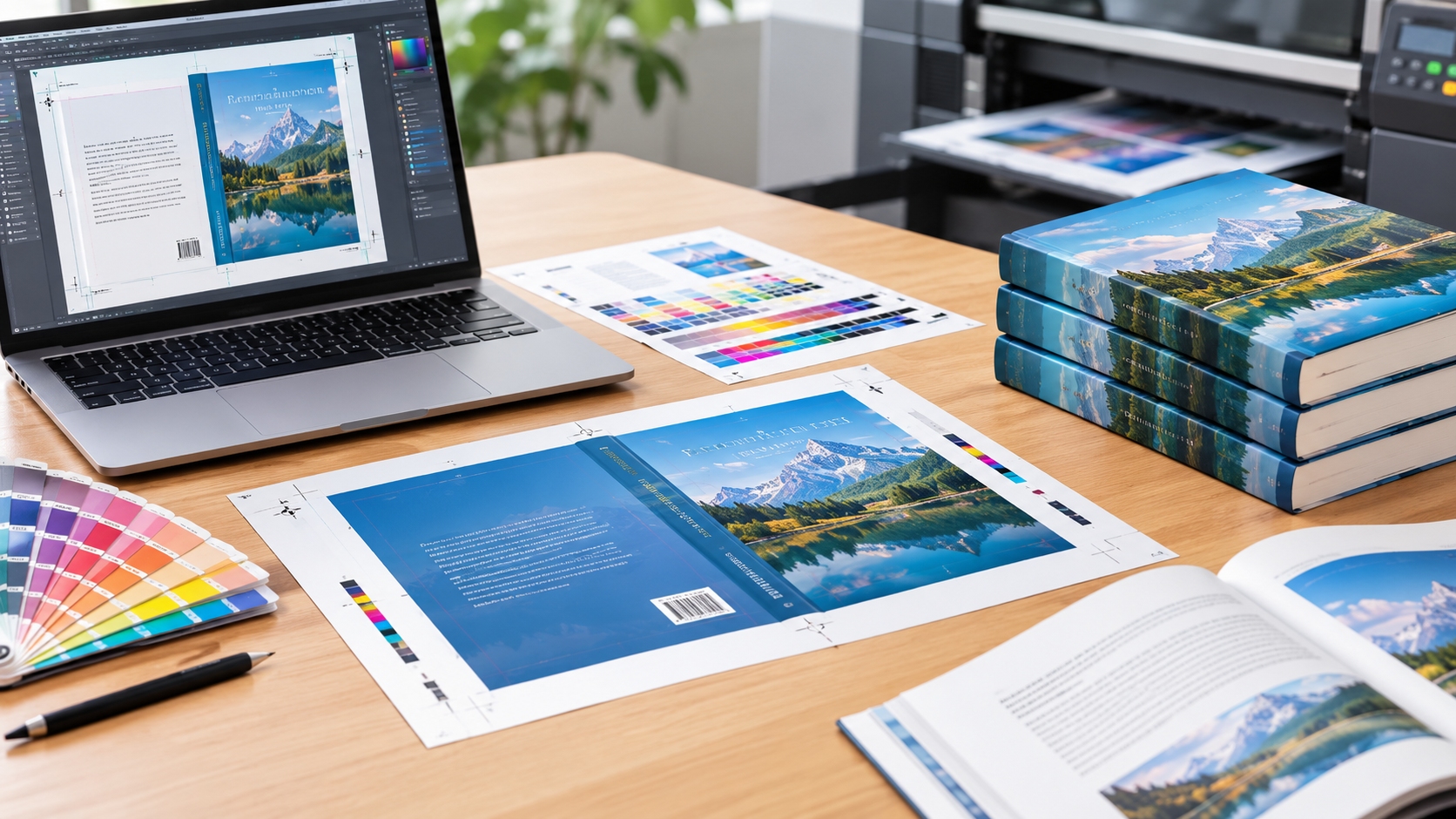

Creating a PDF that’s suitable for print is among the most crucial stages in professional book printing. When printing a novel, hardcover book, paperback, journal, catalog or educational textbook, your PDF needs to satisfy the technical specifications of the printer to ensure that colors are accurate, images sharp, pages are properly aligned, and finishing is clean.
Even a file that seems to be a perfect size for your computer can lead to printing issues if the file’s page size is not correct, fonts are missing, images are low-resolution, there is not enough bleed, or the cover is not properly formatted. Knowing what these requirements are beforehand will help to prevent reprints, delays, and unnecessary revisions.
This guide outlines how to set up a document for printability in PDF for book printing, such as image resolution, color modes, font embedding, bleed, margins, cover setup and final preflight.
1. Choose the Correct Book Size and Page Layout
When planning a book layout, check with your printing company to be sure of the final dimensions. The trim size is the actual physical dimensions of the book after the book is cut from the printed sheets.
Some typical book sizes are:
- 5 × 8 inches: novels and compact paperback books.
- 5.5 × 8.5 inches: trade paperbacks and general nonfiction.
- 6 × 9 inches: business books, manuals, and many nonfiction titles.
- 8.5 × 11 inches: textbooks, workbooks, and technical manuals.
Document size should be the same as the size agreed upon for the trim. When designing a page size for your book, the interior PDF is typically designed to be the same size as your book, such as 6 × 9 inches, plus bleed if necessary for the printer.
Note: The actual size (after trimming) does not equal the finished trim size. If you have an image or background colors that are extending to the edge of your design, you need to consider some bleed beyond the trim line.
It is important to also check if it’s a single page or printer spreads that the printer needs. Most book printing companies will want the pages to be delivered in reading order, and some printing jobs may need to be printed in a different format.
2. Set Up Proper Bleed and Safe Margins
Bleed and margins are essential for preventing white edges, clipped text, and poorly positioned content.
What is bleed in book printing?
Bleed is the art outside the final trim line; the extra art. It ensures that cutting can be done with small variations and will not leave behind unwanted white edges.
Typically, commercial printers will ask for a 0.125” (3 mm) bleed on each side to which it is applied. But the exact requirements depend on a particular printer, binding technique and production.
The overall artwork area is 6.25 × 9.25 inches for a 6 × 9-inch page with 0.125-inch bleed on all four sides that is provided as a single page with bleed.
Never place text, important page numbers, logos or other key information outside the safe area. It is good practice to start at a minimum of 0.25 inches from the trim line, but sometimes larger margins may be necessary depending upon the design.
Account for the binding margin
The inside margin or gutter is particularly significant for thick books and those with glued spines. If the text is set too close to the spine, it will be hard to read after binding.
If you have a thick book, expand the gutter if necessary and print according to the printer’s suggestions. Different layout considerations may apply to hardcover books, perfect bound paperbacks and saddle stitched booklets.
3. Use High-Resolution Images and Graphics
The image quality directly influences the image of your printed book. The images on the computer screen may not be legible when printed.
Print the images at 300 DPI (dots per inch) at the size they will be printed at for most full-color book printing projects. Depending on the printing process, higher effective resolution may be required for line art and technical drawings and for some detailed illustrations.
Prior to exporting your PDF file, be sure to review the following:
- Image resolution: Use approximately 300 DPI for photographs and detailed color images at their intended print size.
- Image scaling: Avoid enlarging small images excessively, as this reduces effective resolution.
- Image quality: Use original, high-quality files instead of compressed images downloaded from websites.
- Vector graphics: Keep logos, diagrams, and illustrations in vector format when possible for crisp edges.
- Transparency: Check how transparent effects, shadows, and overlays render in the exported PDF.
For example, a photograph that measures 6 inches wide at 300 DPI should ideally contain approximately 1,800 pixels across its width.
Remember that increasing the DPI setting alone does not create additional image detail. Start with sufficiently high-resolution source files and place them at an appropriate size.
4. Choose the Correct Color Mode
Color settings can significantly affect the final printed result.
Digital screens display colors using RGB (red, green, and blue), while many conventional commercial printing processes use CMYK (cyan, magenta, yellow, and black). RGB colors may look brighter on screen than the colors that can be reproduced using a particular printing process.
For this reason, you should confirm the printer’s preferred color workflow before converting your artwork.
RGB vs. CMYK for book printing
| Feature | RGB | CMYK |
|---|---|---|
| Primary use | Digital screens | Traditional process printing |
| Color range | Generally wider for bright screen colors | Limited by inks and printing conditions |
| Common application | Digital artwork and some modern print workflows | Many offset and conventional print workflows |
Some digital printers will accept RGB PDFs and do their own colour conversion. Others need to have a CMYK file or a particular ICC color profile.
Best practice: Do not automatically convert all files, follow printer’s color specifications. For important brand colors, photographs and full-page artwork, please request a proof when using a CMYK workflow or when the recommended ICC profile is not available.
In black interior letters, the “black” is often preferred to be 100%.In black lettering in the interior, the color “black” is often preferred to be 100%. Rich-black should not be used everywhere for small text, but for large black areas it might be necessary to use a rich-black mixture that is suitable for a printer.
5. Embed Fonts in Your PDF
If the fonts are missing or substituted, the line breaks, page layout and text may be different from what you expect.
When creating a printable PDF, make sure to embed or subset embed all fonts if possible, due to license restrictions and the PDF export program. This will help maintain the original typography of the printer’s computer.
To minimize font issues:
- Use licensed fonts that permit your intended use.
- Check that all fonts are embedded in the exported PDF.
- Review special characters, punctuation, symbols, and non-English text.
- Inspect page breaks and line wrapping after export.
- Avoid unnecessary font substitution or conversion.
Some printers accept outlined text in specific circumstances, particularly for logos or decorative lettering. However, converting all body text to outlines can increase file complexity and make corrections more difficult. Embedded fonts are generally preferable for normal book text.
6. Export the PDF Using the Right Settings
The export process is where many common prepress issues occur. Design software such as Adobe InDesign, Affinity Publisher, and other professional layout tools offers PDF export settings for different purposes.
For commercial book printing, PDF/X-4 is a commonly supported standard, while some printers specifically require PDF/X-1a or another preset. Always confirm the accepted format before exporting.
A typical print-ready PDF checklist includes:
- Correct final page dimensions.
- Bleed settings configured according to the printer’s specifications.
- Fonts embedded.
- Images at appropriate resolution.
- Correct color profile and color handling.
- No unwanted crop marks, registration marks, or printer marks unless requested.
- Pages arranged in the required reading order.
- No missing links, overset text, or unexpected transparency effects.
If you use Adobe InDesign, check the export dialog’s Marks and Bleeds section. Enable document bleed settings when required, and include crop marks only if the printer requests them.
Do not add bleed simply by increasing the PDF page size without extending the artwork. The image or background must actually continue beyond the trim line to prevent white edges after cutting.
7. Prepare the Book Cover as a Separate Print-Ready PDF
Book covers require special attention because their dimensions depend on the book’s page count, paper thickness, binding method, and finishing options.
A paperback cover typically consists of the back cover, spine, and front cover in one continuous layout. A hardcover may require additional material for wrapping around the boards, as well as hinge and turn-in allowances.
Calculate the spine width accurately
The spine width depends primarily on the number of pages and the thickness of the selected paper. Different paper stocks with the same weight can have different calipers, so page count alone is not enough to calculate an exact spine width.
Ask your printer for a cover template based on your final specifications, including:
- Finished book trim size.
- Final interior page count.
- Paper type and thickness.
- Binding style.
- Bleed and wraparound requirements.
- Finishing options, such as foil stamping or spot UV.
Use the supplied template rather than estimating the spine width yourself. Even a small error can cause the spine title to shift or the cover panels to align incorrectly.
Keep all important cover text inside the designated safe areas. If you plan to use foil stamping, embossing, or spot UV, the printer may require separate finishing layers or files.
For professional book production, it is common to submit the interior PDF and cover PDF separately unless the printer specifies another workflow.
8. Check Page Order, Pagination, and Binding Requirements
A print-ready PDF must contain the correct number of pages in the correct sequence.
For an interior file, review:
- Front matter, including the title page and copyright page.
- Table of contents and chapter openings.
- Page numbers and running headers.
- Blank pages intentionally included for layout purposes.
- Image placement and chapter transitions.
- Final pages, appendices, and indexes.
Avoid deleting intentional blank pages simply to make the page count look more compact. The correct pagination depends on the book’s design and binding requirements.
Some binding processes require page counts in multiples of a particular number, while digitally printed books may have different constraints. Ask your printer about minimum and maximum page counts, paper availability, and binding limitations.
For hardcover books, confirm whether endpapers, inserts, or other special components must be supplied separately.
9. Run a PDF Preflight Check
Preflight is the process of checking a document for technical issues before it enters production. It helps identify problems that may not be visible during ordinary proofreading.
Check these common issues before submitting the file:
| Checkpoint | What to verify |
|---|---|
| Page size | Matches the approved trim size |
| Bleed | Artwork extends beyond the trim where required |
| Fonts | Embedded and displaying correctly |
| Images | Sufficient effective resolution |
| Colors | Correct profiles and output settings |
| Transparency | Effects render as intended |
| Text | No clipping, missing characters, or overset text |
| Page order | All pages are present and correctly arranged |
| Cover | Spine width and panel alignment are correct |
| File integrity | PDF opens without errors |
Adobe Acrobat Pro offers print production tools for examining page boxes, output previews, color separations, and other technical properties. Other professional prepress applications can provide similar checks.
A successful automated preflight does not guarantee a perfect book. It checks technical conditions, but it cannot replace careful visual inspection.
10. Request a Proof Before Full Production
Even when your PDF passes every technical check, a printed proof is valuable for evaluating the actual result.
A digital proof or soft proof can help identify layout and color concerns, but a physical proof provides a more realistic view of paper texture, image reproduction, binding, and finishing.
Before approving the final file, review:
- Text readability and font size.
- Image sharpness and color consistency.
- Gutter visibility and inner margins.
- Cover alignment and spine positioning.
- Page trimming and edge-to-edge artwork.
- Paper opacity, thickness, and overall appearance.
For large print runs, expensive hardcover books, or projects with specialized finishes, a physical proof can help prevent costly production errors.
If you make corrections after proofing, export the revised PDF and verify that the changes have not introduced new problems. Ensure the printer receives the final approved versions of both the interior and cover files.
Frequently Asked Questions About Print-Ready PDFs
What is a print-ready PDF?
A print-ready PDF is a document prepared according to a printing company’s technical specifications. It typically includes the correct page dimensions, embedded fonts, suitable image resolution, appropriate color settings, and bleed where required.
What PDF format is best for book printing?
PDF/X-4 is widely used in professional printing workflows, but PDF/X-1a and standard PDF files may also be accepted. The best format depends on the printer’s equipment and prepress requirements.
Do all book PDFs need bleed?
No. Bleed is generally required when images, background colors, or other artwork extend to the trimmed edge of a page. Pages with only text and sufficient white margins may not need bleed, depending on the printer’s specifications.
What resolution should images have for book printing?
For most photographs and detailed color images, 300 DPI at the final placed size is a reliable target. Specialized graphics may require different settings, and the printer’s requirements should take priority.
Should the book cover and interior be in one PDF?
Usually, the interior and cover are supplied as separate PDF files. However, submission requirements vary by printer and production workflow, so confirm the required format before exporting.
Conclusion
Saving to PDF is not enough to get a book ready to print. You must ensure the trim size, the bleed and safe margins, high-resolution images, color profiles, font embedding, PDF standard, and cover and interior file.
The most effective workflow is to have the printer’s specifications, design the layout and then run a preflight followed by a proof which is then approved before going into full production.
These are the steps you can take to minimize production errors and produce a professional book, whether you are printing a paperback novel, hardcover publication, journal, textbook or even a custom business book.
For commercial printing orders, collaborate with a book printing factory with experience, which can give you the right model of covers to work with, check your files, suggest paper for the book, and offer advice on binding the book before any printing starts.
Share on Social:


